
All about WRI files
WRI files are text documents created using Microsoft Write. Write was a simple word processing programme that Microsoft included with Windows from version 1.0 onwards in 1985. The format remained the standard for basic word processing on Windows until the release of Windows NT. WRI files are consequently quite old, but they still crop up from time to time and can be easily converted.
WRI files contain formatted text with various fonts, paragraph formatting and simple layouts such as letterheads. Compared to current formats such as DOC or DOCX, the possibilities are naturally limited – but at the time, this was standard practice for CVs, letters and other documents.
History of the WRI format
Microsoft Write was released[2] in late 1985 alongside Windows 1.0 and was the first dedicated word processor for the Windows platform. Unlike the plain text editor Notepad (for TXT files), Write offered basic formatting functions such as font selection, paragraph indentation and text alignment.
From Windows 3.0 (1990) onwards, Microsoft Write was also able to read and write the Word format (.doc) of the time.[1] With the release of Windows 95, Microsoft discontinued both Write and the WRI format, replacing them with WordPad (which supported RTF files, among others), which offered enhanced features and better compatibility.
Opening WRI files
As Microsoft Write has been discontinued for over 30 years, current versions of Windows can no longer open WRI files natively. The following programmes still support the format:
- LibreOffice Writer (Windows, macOS, Linux)
- Apache OpenOffice Writer (Windows, macOS, Linux) – but development has effectively ceased
- Older versions of Microsoft Word
- Corel WordPerfect
However, the simplest solution is to convert the file to a modern format.
Why convert WRI files?
WRI is an outdated format with limited software support. Converting to current formats offers several advantages:
- Universal compatibility: PDF and DOCX can be opened on virtually any device
- Long-term archiving: Modern formats are actively maintained and remain readable
- Editing: After conversion to DOCX or ODT, the document can be further edited
- Sharing: PDF files can be easily sent by email or printed
Convert WRI to PDF
Converting WRI to PDF is the most common conversion for this format. PDF is particularly suitable if the document is only to be read or archived. The layout is preserved and the file can be opened on any device without special software.
Further conversion options
In addition to PDF, File-Converter-Online.com offers conversion from WRI to numerous other formats:
- WRI to DOCX – for further editing in Microsoft Word
- WRI to ODT – for LibreOffice and OpenOffice
- WRI to DOC – for older versions of Word
Structure of a WRI file
The WRI format is a proprietary binary format with a 128-byte header (File Information Block) at the start of the file. The file is organised into 128-byte blocks (pages).[3]
| Offset | Field | Type | Description |
|---|---|---|---|
| 0–1 | magic | Word | Magic Bytes: 0xBE31 (v3.0) or 0xBE32 (v3.1/OLE) |
| 2–3 | zero | Word | Always 0x0000 |
| 4–5 | magic2 | Word | Tool ID: 0xAB00 for Microsoft Write |
| 6–13 | zero2 | 4×Word | Reserved, always zero |
| 14–17 | numCharBytesPlus128 | DWord | Number of bytes for text, images and OLE from byte 128 |
| 18–19 | pageParaInfo | Word | Page of paragraph formatting |
| 20–21 | pageFootnoteTable | Word | Footnote table page |
| 22–23 | pageSectionProperty | Word | Page of the page layout |
| 24–25 | pageSectionTable | Word | Page of the section table |
| 26–27 | pagePageTable | Word | Page of the page table |
| 28–29 | pageFontTable | Word | Page of the font table |
| 30–95 | zero3 | 33×Word | Reserved, always zero |
| 96–97 | numPages | Word | Total number of 128-byte blocks |
| 98–127 | – | – | reserved |
All multi-byte values are stored in little-endian format (Intel byte order). The magic bytes 0xBE31 therefore appear in the file as 31 BE.[3]
Example: How is bold text stored?
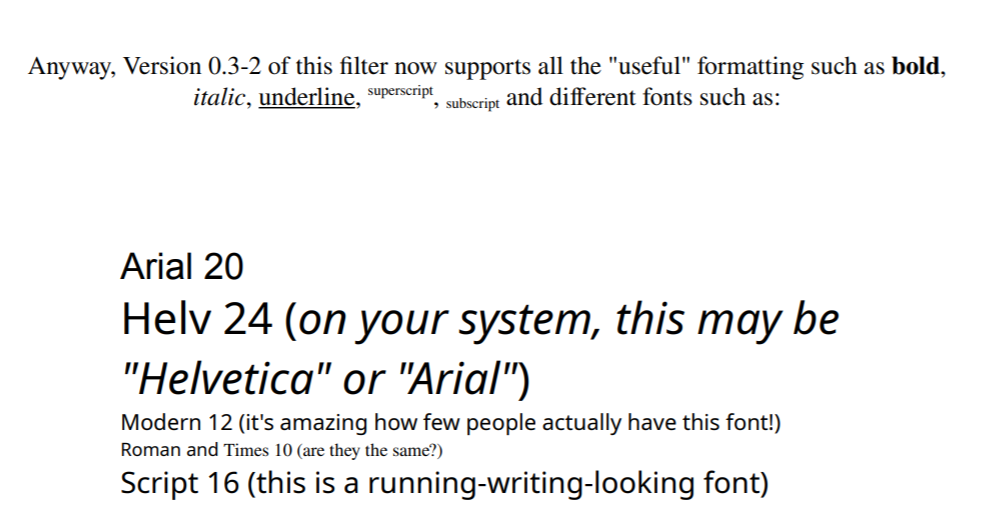
WRI formatting examples
The actual text begins at byte 128. The formatting (bold, italics, font size, etc.) is stored separately in a FormatInfoPage. This contains so-called FormatPointers, which specify which text area receives which formatting.[3]
Suppose a document contains the text “Hello World” – note that “World” is formatted in bold:
Text content (starting at offset 128):
Position 128–133: "Hello " (6 characters, default formatting)
Position 134–138: "World" (5 characters, bold)

FormatInfoPage (Formatting info):
┌──────────────────────────────────────────────────────────────┐
│ FormatPointer #1: Chars 128–133 ("Hello ")                   │
│   afterEndCharBytePlus128 = 134 (first character after area) │
│   formatPropertyOffset = 0xFFFF → default (not bold)         |
├──────────────────────────────────────────────────────────────┤
│ FormatPointer #2: Chars 134–138 ("World")                    │
│   afterEndCharBytePlus128 = 139 (first character after area) │
│   formatPropertyOffset = 0 → points to FormatCharProperty    │
├──────────────────────────────────────────────────────────────┤
│ FormatCharProperty (7 Bytes):                                │
│   Byte 0: 0x06  number of following bytes                    │
│   Byte 1: 0x01  (reserved)                                   │
│   Byte 2: 0x01  formatting flags: Bit 0 = bold               │
│   Byte 3: 0x18  font size 24 (equals 12 point)               │
│   Byte 4: 0x00  underline and pagenumber-flag                │
│   Byte 5: 0x00  high bits of font face                       │
│   Byte 6: 0x00  position (0=normal, 1–127=high, 128–255=low) │
└──────────────────────────────────────────────────────────────┘
The crucial byte 2 contains the formatting flags as individual bits:
Byte 2 - Bit-Mapping:
Bit:    7   6   5   4   3   2       1          0
        └───────────────────┘       │          │
           fontCodeLow              │          └─ isBold (1=bold)
         (Font-Face-Nr.)            └──────────── isItalic (1=italic)

Examples:
0x00 (binary 00000000) = normal font
0x01 (binary 00000001) = bold
0x02 (binary 00000010) = italic
0x03 (binary 00000011) = bold + italic
Embedded graphics are distinguished using the mappingMode field: 0xE3 indicates monochrome bitmaps, 0xE4 stands for OLE objects, whilst other values (typically 0x88) indicate Windows Metafiles (WMF).[3]
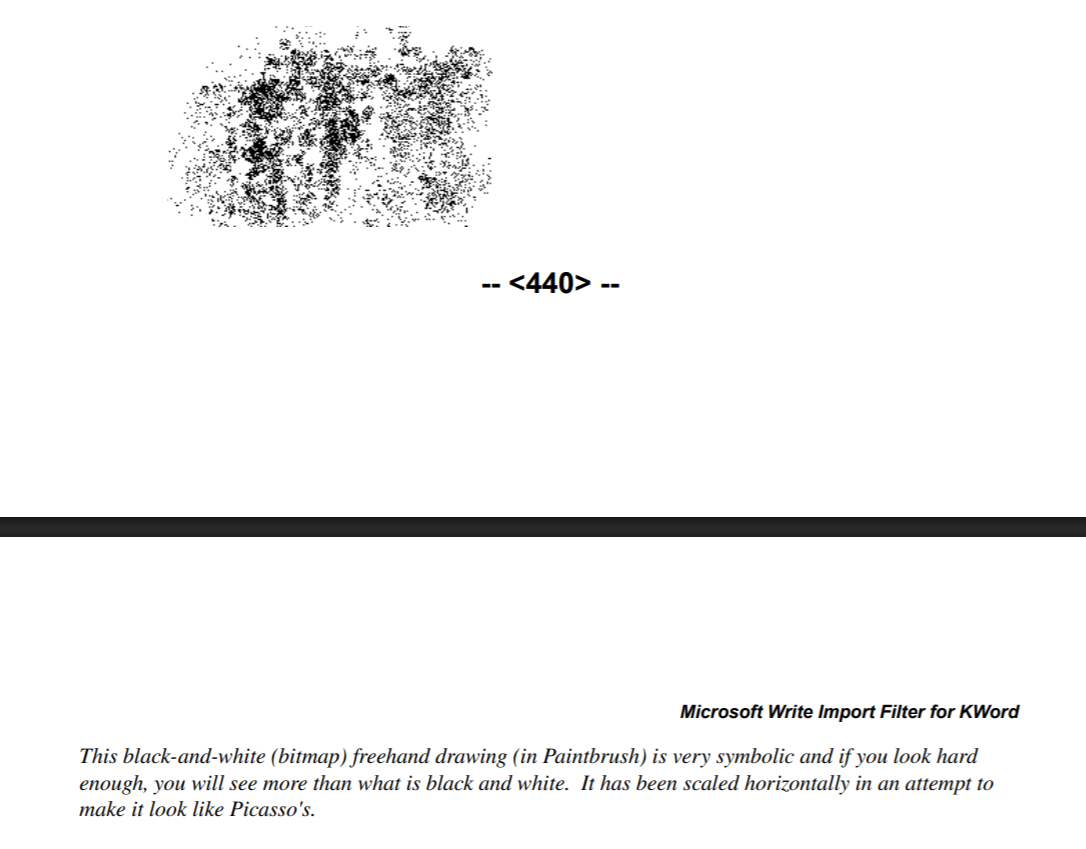
As a demonstration, Clarence Dang has artistically immortalised himself in a WRI file – naturally not without an ironic reference.
The information in this section is based on my own analysis of the source code for Clarence Dang’s libmswrite. I really enjoyed working with his source code, and it’s clear that he had a lot of fun reverse-engineering the .wri files back in the day! Many thanks for the little trip down memory lane.
Sources
[1] https://www.nationalarchives.gov.uk/PRONOM/x-fmt/4
[2] https://www.edn.com/microsoft-ships-windows-1-0-november-20-1985/
[3] https://sourceforge.net/projects/libmswrite/
[4] Sample file: filtertest.wri – Clarence Dang – libmswrite
Convert, open and edit WRI files
Details about WRI files
- Software for opening WRI files
- Software for editing WRI files
- MIME-type for WRI
No Comments